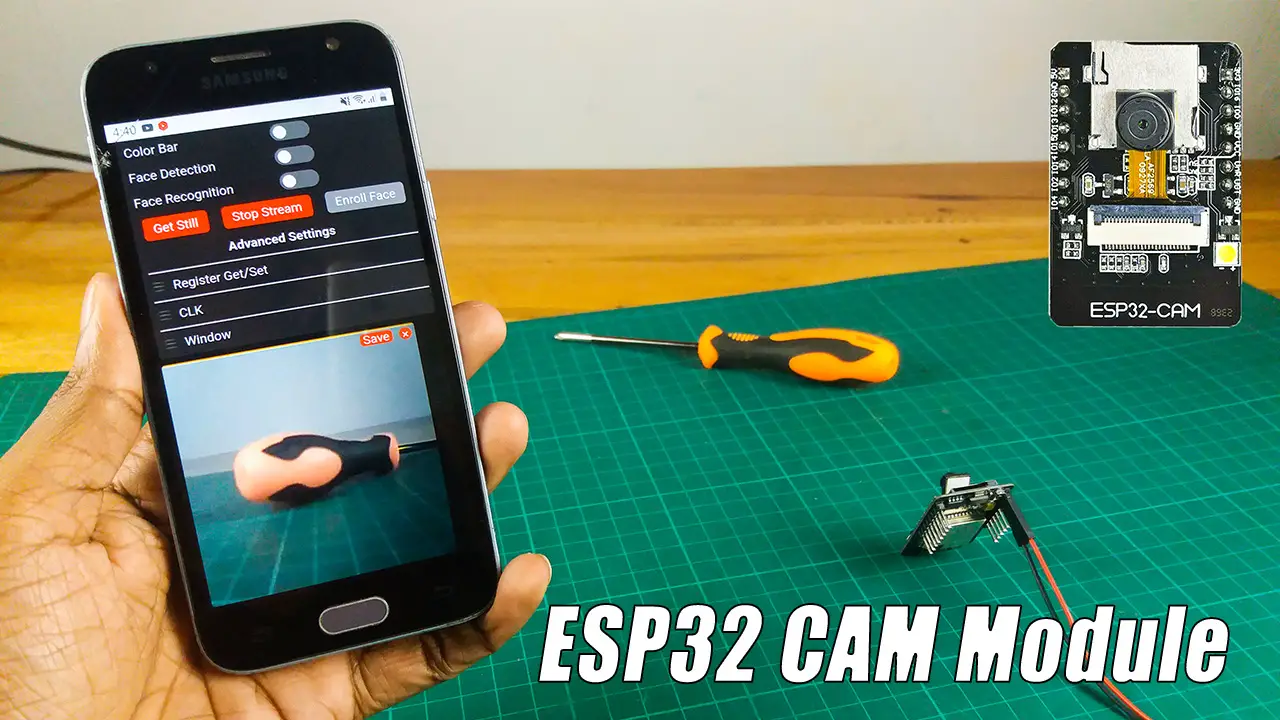
Setup Overview:
Hardware Preparation: Ensure the ESP32-CAM module is connected and properly powered.
Image Capture Library: Use the esp_camera library to initialize and capture images.
Timing Mechanism: Use Ticker (or millis for manual implementation) for periodic image capture.
Optional: Store the images to an SD card or send them via HTTP, MQTT, or FTP.
Hardware Preparation: Ensure the ESP32-CAM module is connected and properly powered.
Image Capture Library: Use the esp_camera library to initialize and capture images.
Timing Mechanism: Use Ticker (or millis for manual implementation) for periodic image capture.
Optional: Store the images to an SD card or send them via HTTP, MQTT, or FTP.
Arduino
#include "esp_camera.h"
#include "Arduino.h"

// Camera Pin Configuration (adjust for your ESP32-CAM module)
#define PWDN_GPIO_NUM    -1
#define RESET_GPIO_NUM   -1
#define XCLK_GPIO_NUM     0
#define SIOD_GPIO_NUM    26
#define SIOC_GPIO_NUM    27

#define Y9_GPIO_NUM      35
#define Y8_GPIO_NUM      34
#define Y7_GPIO_NUM      39
#define Y6_GPIO_NUM      36
#define Y5_GPIO_NUM      21
#define Y4_GPIO_NUM      19
#define Y3_GPIO_NUM      18
#define Y2_GPIO_NUM       5
#define VSYNC_GPIO_NUM   25
#define HREF_GPIO_NUM    23
#define PCLK_GPIO_NUM    22

unsigned long lastCaptureTime = 0;
const unsigned long captureInterval = 5000; // Interval in milliseconds (e.g., 5 seconds)

void setup() {
  Serial.begin(115200);

  // Initialize the camera
  camera_config_t config;
  config.ledc_channel = LEDC_CHANNEL_0;
  config.ledc_timer = LEDC_TIMER_0;
  config.pin_d0 = Y2_GPIO_NUM;
  config.pin_d1 = Y3_GPIO_NUM;
  config.pin_d2 = Y4_GPIO_NUM;
  config.pin_d3 = Y5_GPIO_NUM;
  config.pin_d4 = Y6_GPIO_NUM;
  config.pin_d5 = Y7_GPIO_NUM;
  config.pin_d6 = Y8_GPIO_NUM;
  config.pin_d7 = Y9_GPIO_NUM;
  config.pin_xclk = XCLK_GPIO_NUM;
  config.pin_pclk = PCLK_GPIO_NUM;
  config.pin_vsync = VSYNC_GPIO_NUM;
  config.pin_href = HREF_GPIO_NUM;
  config.pin_sscb_sda = SIOD_GPIO_NUM;
  config.pin_sscb_scl = SIOC_GPIO_NUM;
  config.pin_pwdn = PWDN_GPIO_NUM;
  config.pin_reset = RESET_GPIO_NUM;
  config.xclk_freq_hz = 20000000;
  config.pixel_format = PIXFORMAT_JPEG; // JPEG output

  // Frame size (can be changed to FRAMESIZE_QVGA, VGA, etc.)
  if (psramFound()) {
    config.frame_size = FRAMESIZE_UXGA; // Full resolution
    config.jpeg_quality = 10;          // Lower number, higher quality
    config.fb_count = 2;
  } else {
    config.frame_size = FRAMESIZE_SVGA;
    config.jpeg_quality = 12;
    config.fb_count = 1;
  }

  // Camera init
  esp_err_t err = esp_camera_init(&config);
  if (err != ESP_OK) {
    Serial.printf("Camera init failed with error 0x%x", err);
    return;
  }

  Serial.println("Camera initialized successfully!");
}

void loop() {
  unsigned long currentTime = millis();

  // Check if it's time to capture an image
  if (currentTime - lastCaptureTime >= captureInterval) {
    captureImage();
    lastCaptureTime = currentTime;
  }
}

// Function to capture and display image
void captureImage() {
  camera_fb_t *fb = esp_camera_fb_get(); // Capture image
  if (!fb) {
    Serial.println("Camera capture failed");
    return;
  }

  Serial.printf("Image captured! Size: %u bytes\n", fb->len);

  // Example: Release the buffer after use (or store it)
  esp_camera_fb_return(fb);
}
Features and Customizations:
- Change Capture Interval: Modify
captureIntervalto adjust the time between captures. - Image Storage: Save the image to an SD card by adding the SD card library and relevant code.
- Image Transmission: Send the image via Wi-Fi or other communication protocols.
- Error Handling: Add error handling for edge cases, such as memory issues.
- Let us know if you need help extending this example to include specific functionalities like saving to SD or sending images!